
Built for sound designers, sample library owners, and post-production teams who need complete, accurate metadata across large collections of audio files. Organize, tag, audition and deliver.
At a glance
- Every major metadata standard — ID3v2, Vorbis Comments, MP4 atoms, BEXT, iXML, XMP and UCS
- Written into your files, so your library travels to any DAW, asset manager or licensing platform
- Find and replace metadata across a whole project, previewed before anything is written
- Playlists that never move or copy your files
- Advanced Search across any field, playlist or project
- Database-backed projects that open and search fast however large they grow
- Import audio and playlists straight from your Apple Music library
- On-device analysis — loudness, BPM, key, UCS category
- Waveform player with Audio Units in the chain
- Audio and video, including Matroska, WebM and MXF
- Non-destructive fades, trims and normalization
- Batch format conversion and soundpack export
- Spot files straight onto the timeline of Pro Tools, Logic Pro, Cubase, Nuendo, Studio Pro, Reaper, FMOD Studio, DaVinci Resolve, Final Cut Pro, Adobe Premiere or After Effects
- Every core on your Mac put to work processing large libraries
- Free to read, play, organize and analyze
- ShadowTag Pro adds export, spotting, writing changes into individual files, and batch rendering audio edits
Screenshots
Organize
Playlists & projects
Organize files into playlists and groups. ShadowTag stores references, not copies — your files stay where they are, and playlists persist automatically as you work.
- Add files — Drag files or whole folders in from Finder; folders are scanned recursively for supported audio and video.
- Import a folder — File > Import > Folder brings in a library at once: flatten everything into one playlist or mirror each subfolder as its own, with a preview of the mapping before you commit. Pick one folder or several, each becoming its own group.
- Import from Apple Music — Pull your playlists straight out of Music, folders and all. Nothing is copied or moved, and your Music library is left untouched — so you can be playing your own collection, in your own layout, a minute after installing.
- Projects — Keep unrelated work apart: a sound library and a film job need not share the sidebar. Switch between them from the title bar. Requires ShadowTag Pro.
- Relink moved files — Moved or renamed a folder of files? File > Relink Files finds them in the folder you point it to, checks each match against what the library recorded, and reconnects every playlist and project that holds them. Show in Playlists lists every playlist a file is in and takes you there.
- See playlists together — Select several playlists, or a group, to view and tag their files in one table.
- Smart Playlists — Edited, Rated and Colored update themselves, surfacing matching files from every group.
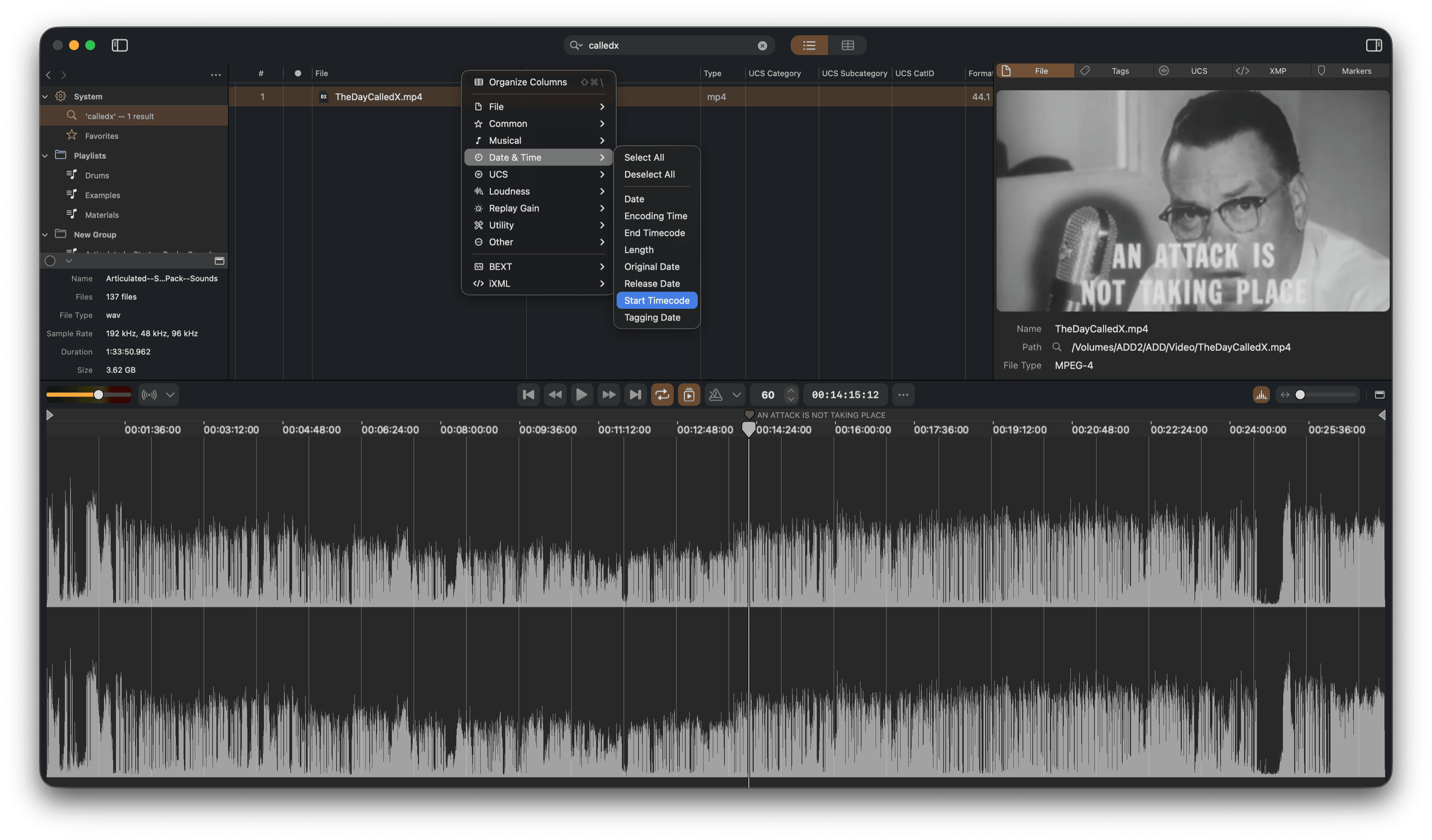
- Custom columns — Show, hide and reorder columns to surface what matters, including all metadata, file properties, and iXML fields.
- Drag to your DAW — The real file on disk is delivered with all embedded metadata intact. No export step, no proxy format.
Projects, importing, groups, named workspaces and how playlists persist are covered in the library help.
Finder integration & file actions
A playlist gathers files that live all over your drives. ShadowTag lets you act on the real files from that one view, so routine file work doesn't mean tracking each one down in Finder.
- Rename, Duplicate, Move to Trash — Act on the files themselves, not just their playlist entries. All three can be undone, and a duplicate lands directly below its original carrying any unsaved edits with it.
- Lock and Unlock — The same lock Finder shows in Get Info, so a file you're finished with can't be overwritten by accident. Locked files are marked in the status column, and saving one tells you which file is locked instead of failing quietly. Finder locks one file at a time; ShadowTag locks as many as you have selected.
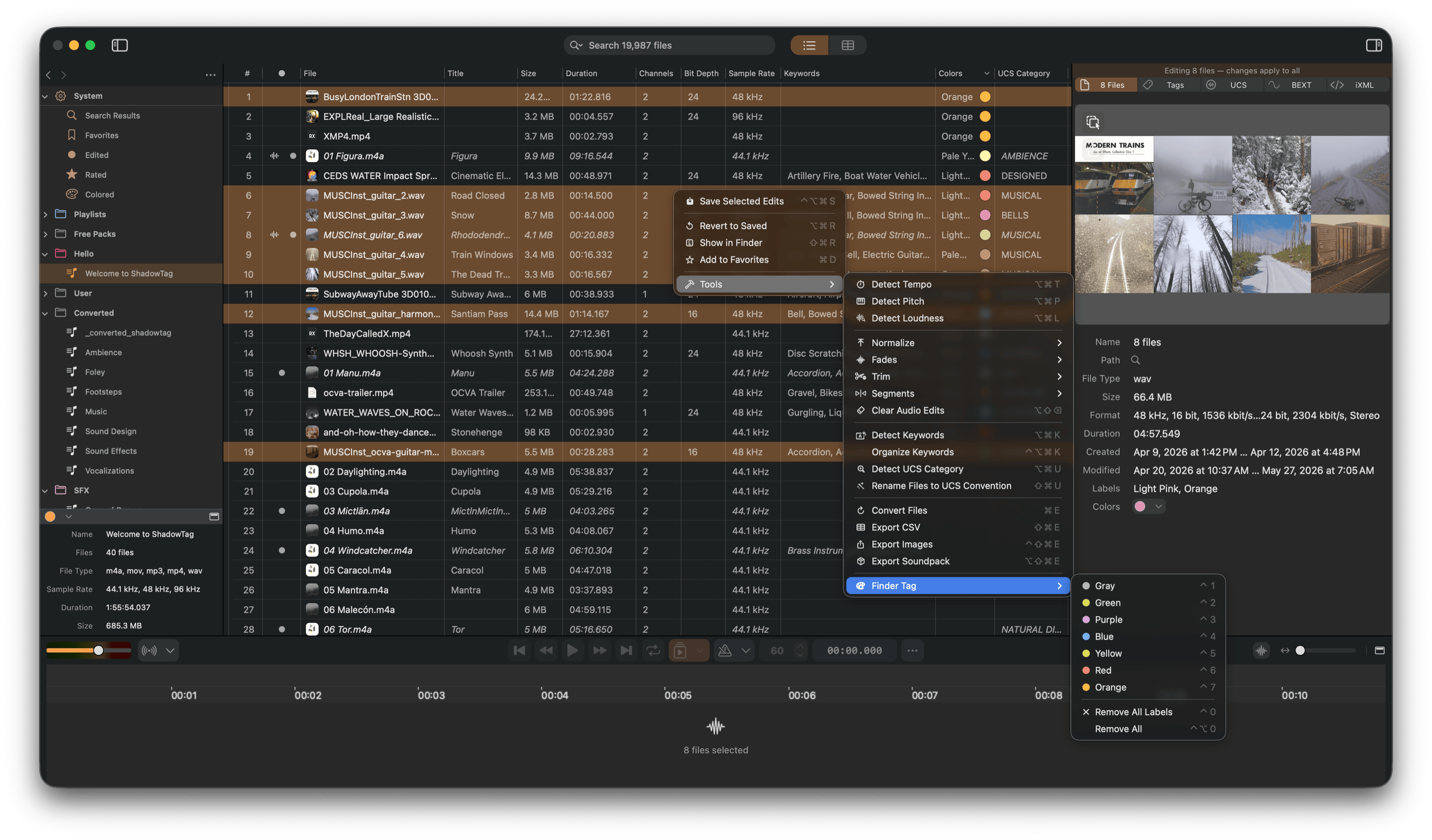
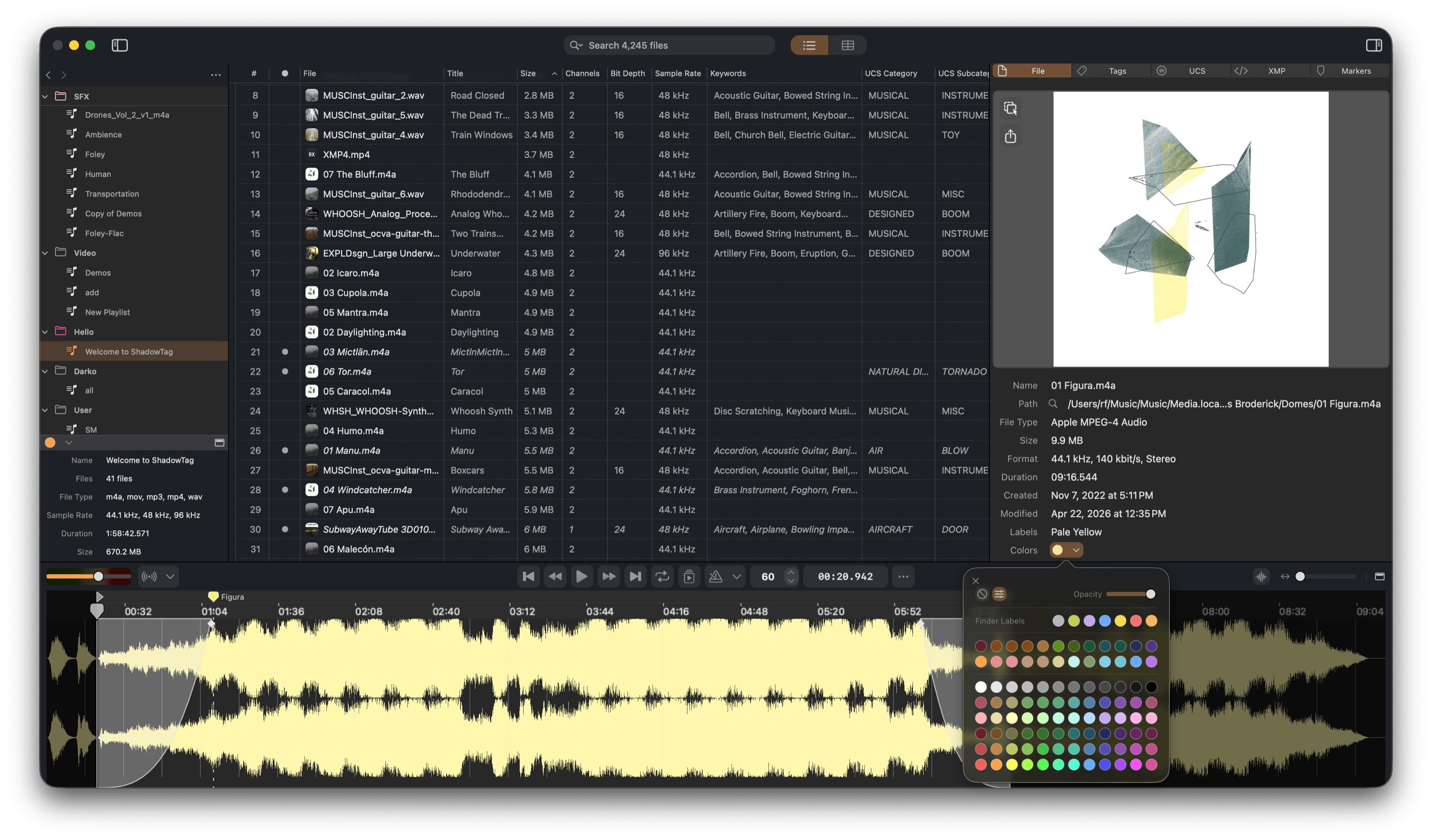
- Finder Tags — Colored labels read and written to macOS, so they're immediately visible in Finder and Spotlight, with custom colors beyond the built-in palette.
- Ratings — 0–5 stars, set with ⌥1–⌥5 alongside the Finder tags. Unlike a Finder label, the rating is a metadata tag: with Pro it's written into the file across every supported format, so it travels with the file.
- Changed on disk — If a file changes underneath you while you have unsaved edits, a window lists every affected file so you can decide what to keep.
- Drag out — Files dragged to Finder are copied, not linked.
Tag colors, lock behavior and what each choice in the conflict window does are covered under Files & Finder in the help.
Search
Search every playlist in a project, just the one you're looking at, or any set of playlists and groups
you choose — the current playlist filters as you type. Beyond plain text, queries can compare fields
directly — bpm > 120, duration < 5s, modified in last 30d
— and understand units, so 120 bpm and -14 lufs find what you mean. Advanced
Search builds the same queries from rules on any field, nested in All, Any and None groups, and saves
them as presets. Results collect in a Search Results playlist, which stays as you left it, even after a
relaunch, until your next search. The library help covers every operator.
Tag
Metadata editing
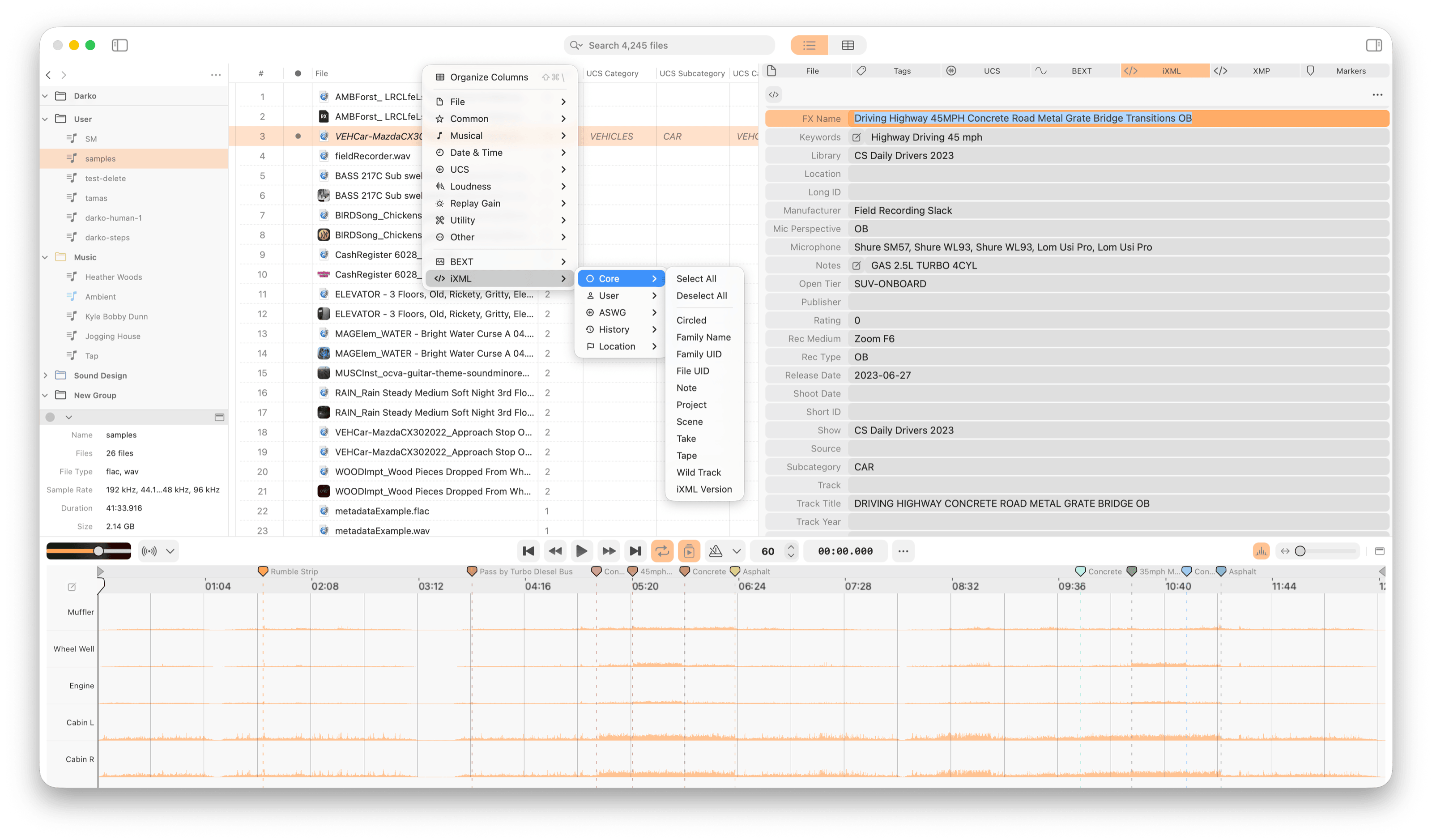
A unified Editor panel exposes all metadata standards in one place, with iXML organized into a structured form editor grouped by section (Core, Project, Recorder, and more). Select multiple files to view and edit shared values across a whole selection at once. Unsaved changes are tracked per file and shown inline in the file list.
For quick changes, double-click any metadata cell in the file list to edit it in place — no need to switch focus to the Editor panel.
Tags, BEXT, iXML, XMP, UCS and markers each write to the structure the format expects, including Matroska and WebM containers and large RF64 and BW64 WAV files. The metadata help lists every standard, the file types that carry it, and how markers are stored per format.
Find and replace
Change text across hundreds of files at once. Search a whole project, one playlist or a selection, in every metadata field or just the ones you pick, with Match Case, Whole Word, Regular Expression and Ignore Accents. Every change is listed with its old and new value before you replace, and the whole replace undoes in one step. The metadata help covers every option.
Automated analysis
Let ShadowTag fill in your metadata for you. All analysis runs entirely on-device — no internet connection required. Running it is free: results are held in your project like any other pending edit, so you can review them before committing, and writing them into the files requires Pro.
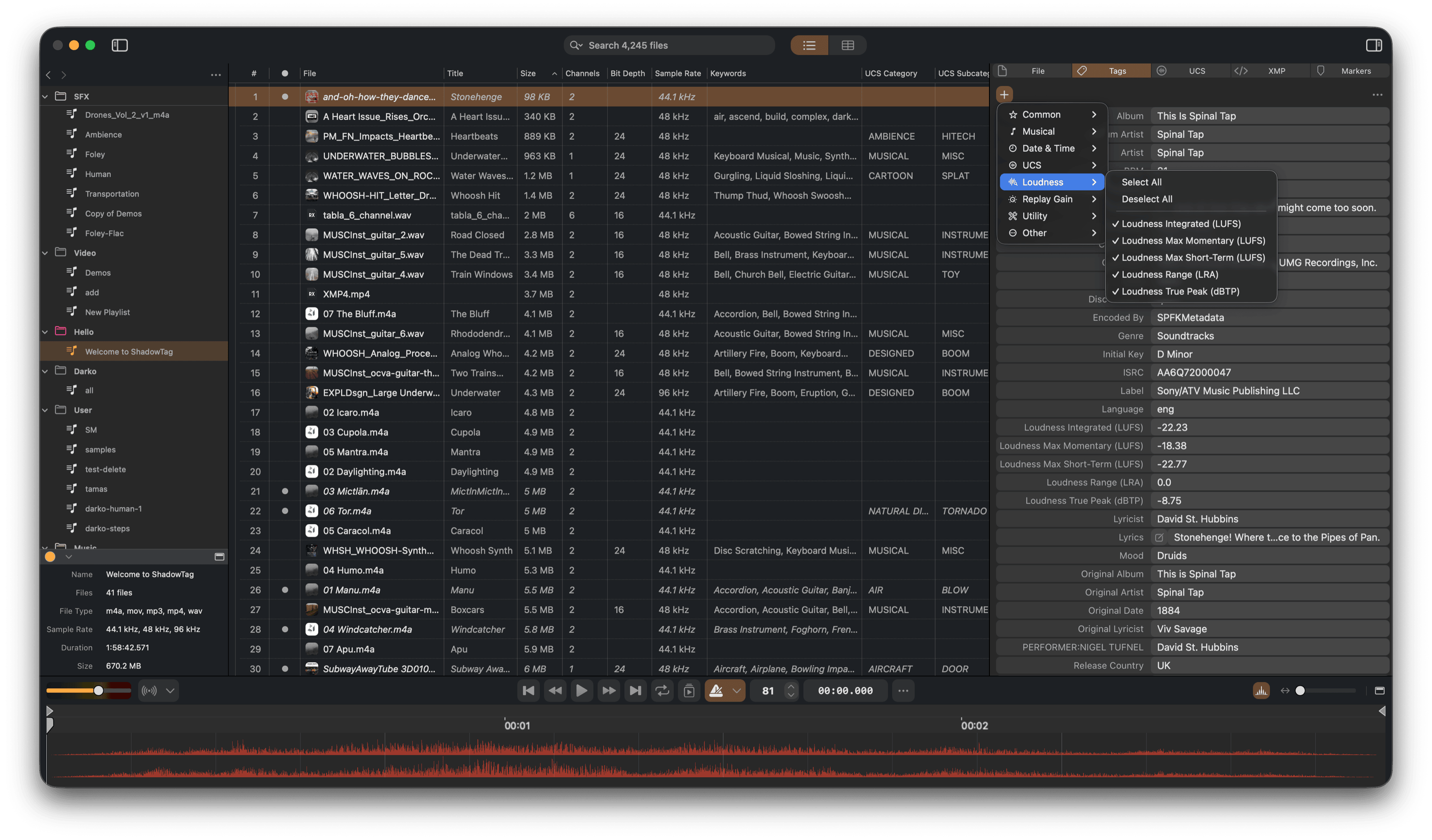
- Loudness — Full broadcast loudness analysis, written to the standard tag, BEXT loudness fields, and ReplayGain track and album gain.
- Tempo — BPM detection, which also drives the built-in metronome during playback.
- Musical Key — Pitch class and tonality detection.
- Detect Keywords — Sound classification that generates descriptive keywords for searching and filtering.
- UCS Category — Category and subcategory suggestions drawn from the filename, existing tags, and the audio itself.
What each pass measures and where it writes is covered in the processing help.
UCS support
ShadowTag has built-in support for the Universal Category System — the open standard for categorizing
sound effects used by professional sound libraries and sync licensing platforms worldwide. Edit all
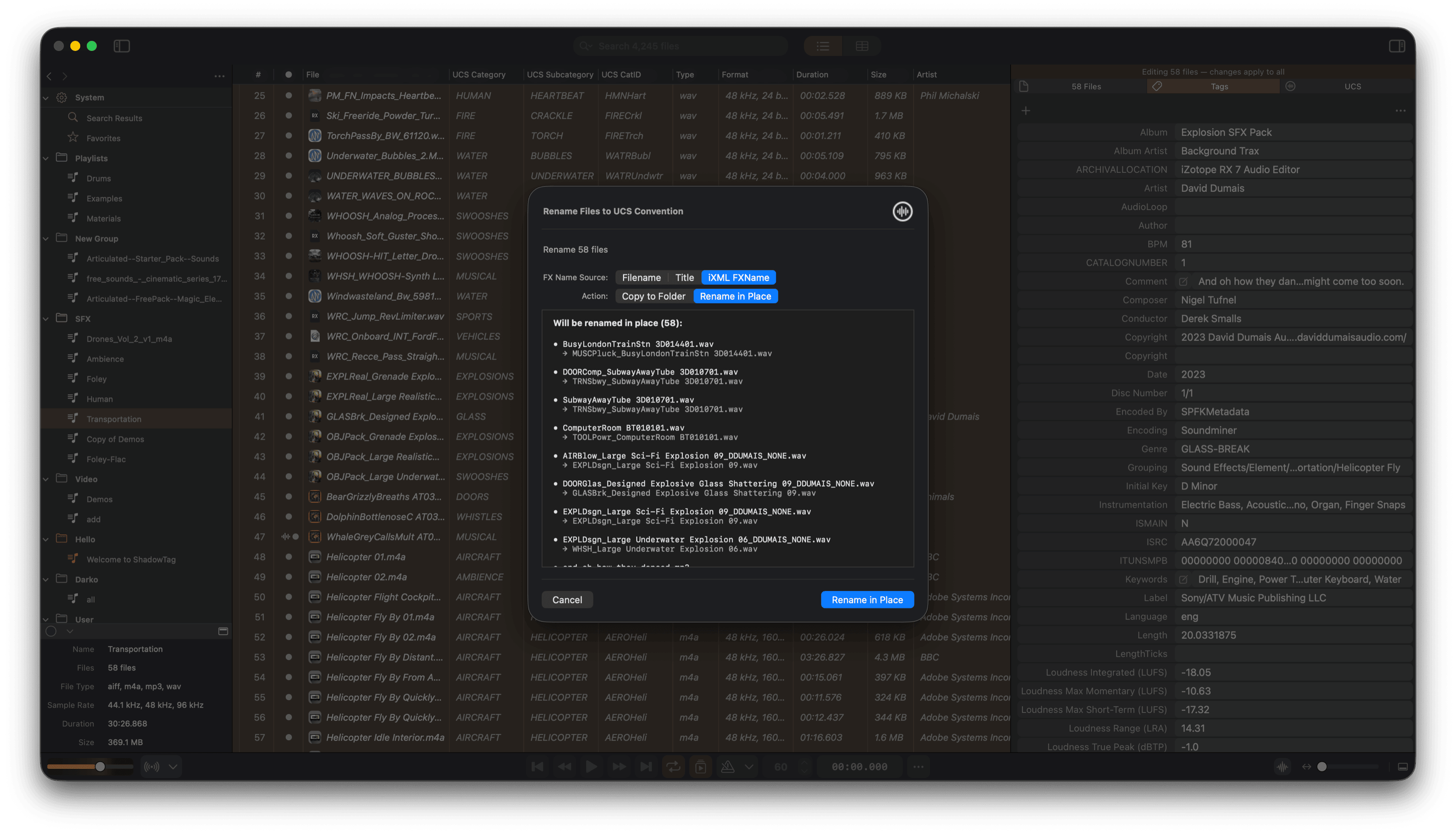
standard fields directly, detect categories automatically, and batch-rename files to the UCS filename
convention. UCS data is written to ID3 TXXX tags and the iXML <USER> container, so
other UCS-aware tools read it as their own.
Audition
Playback
A built-in player auditions files in context, without modifying them.
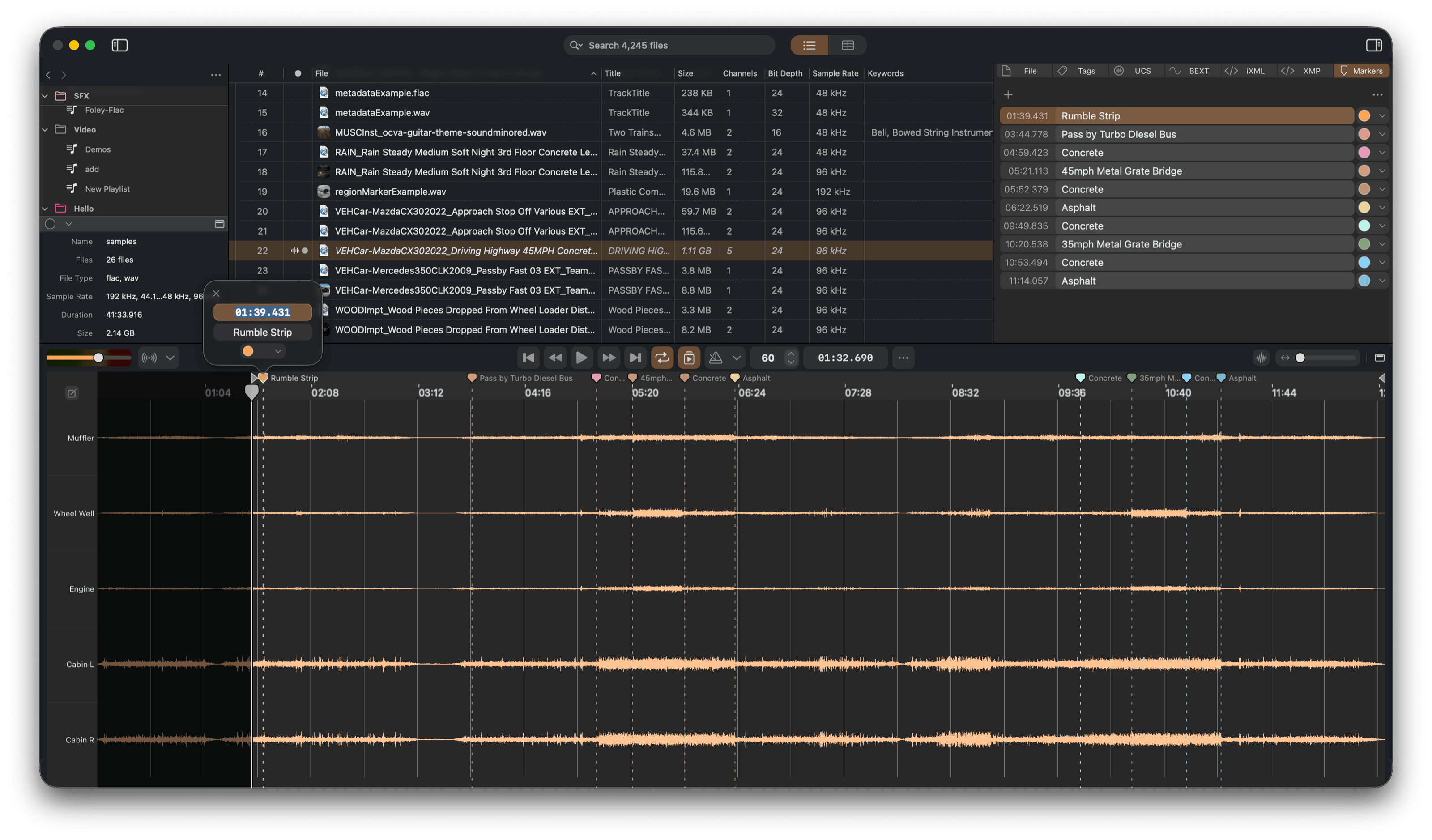
- Waveform — Playback position in real time, with loop regions, playlist auto-advance, and markers.
- Ruler — Switchable between real time and SMPTE timecode, with an optional bar-and-beat overlay driven by the file's BPM. Files carrying a start timecode offset the ruler to match.
- Audio Units — Load plug-ins into the signal chain to audition files through your processing, without modifying them.
- Video — Play video files and view their embedded metadata, such as XMP. A filmstrip sampled across the clip runs alongside the waveform, and read-only details like resolution, frame rate, codec and capture location appear with the file's other metadata. With Apple's free Pro Video Formats package installed, MXF files and professional codecs such as DNxHD and AVC-Intra open as well, read-only.
- Audio tracks — Files carrying more than one audio track list them by name and language; playback, the waveform and conversion all follow the one you pick, and the choice is remembered per file.
- Multichannel Audio — iXML track names appear as per-channel labels beside the waveform, so you can see what each channel holds.
Non-destructive audio editing
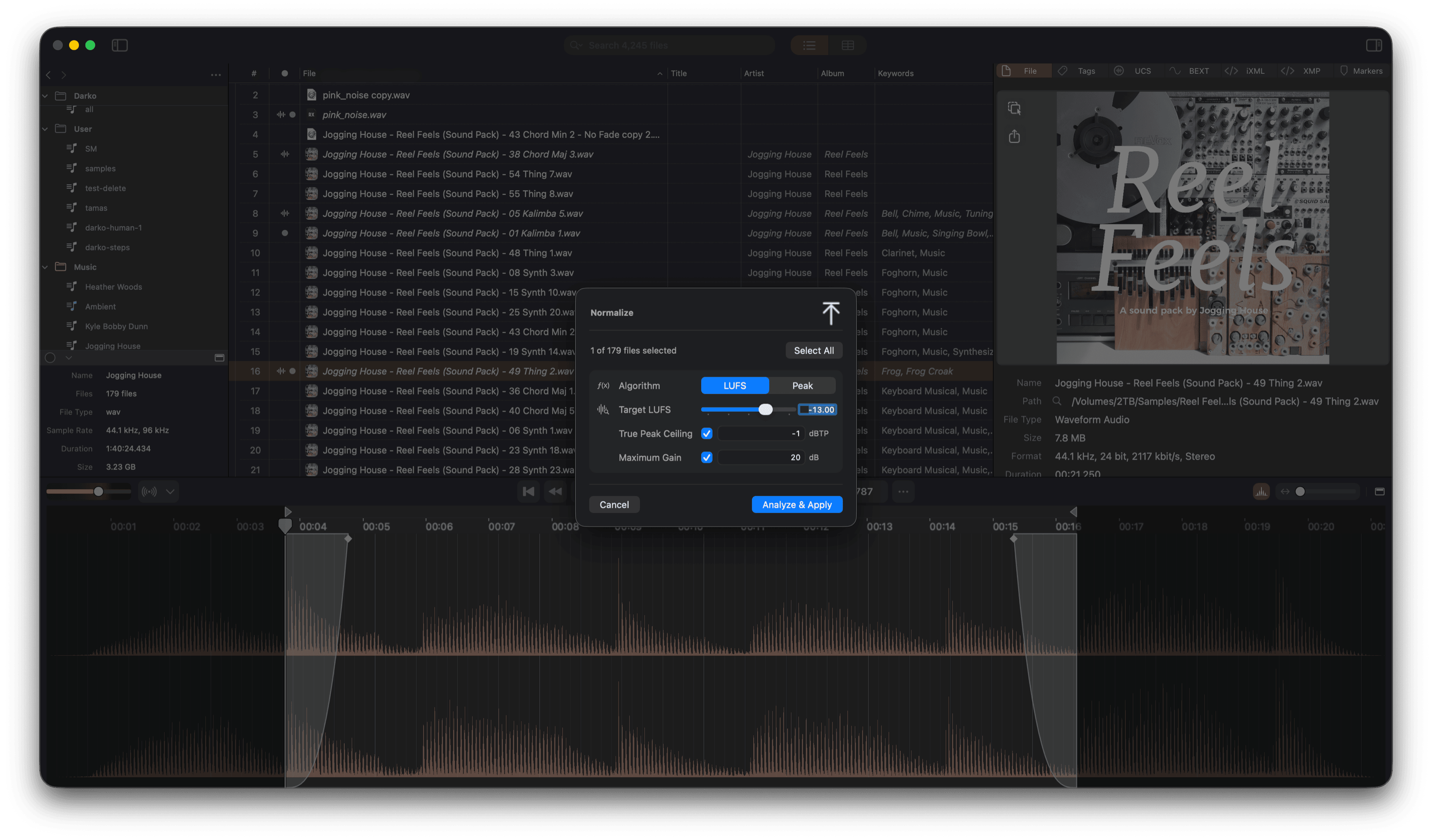
Apply fades, trims, and loudness normalization to your audio without modifying the source file. Edits are previewed live during playback through the master fader and only written into the file when you explicitly save. The dirty column shows a waveform icon for files with pending audio edits, distinct from metadata-only changes.
- Fade In / Fade Out — Draw fades directly on the waveform with adjustable taper shapes, or use Fade Selection / Fade with Options in the Tools menu.
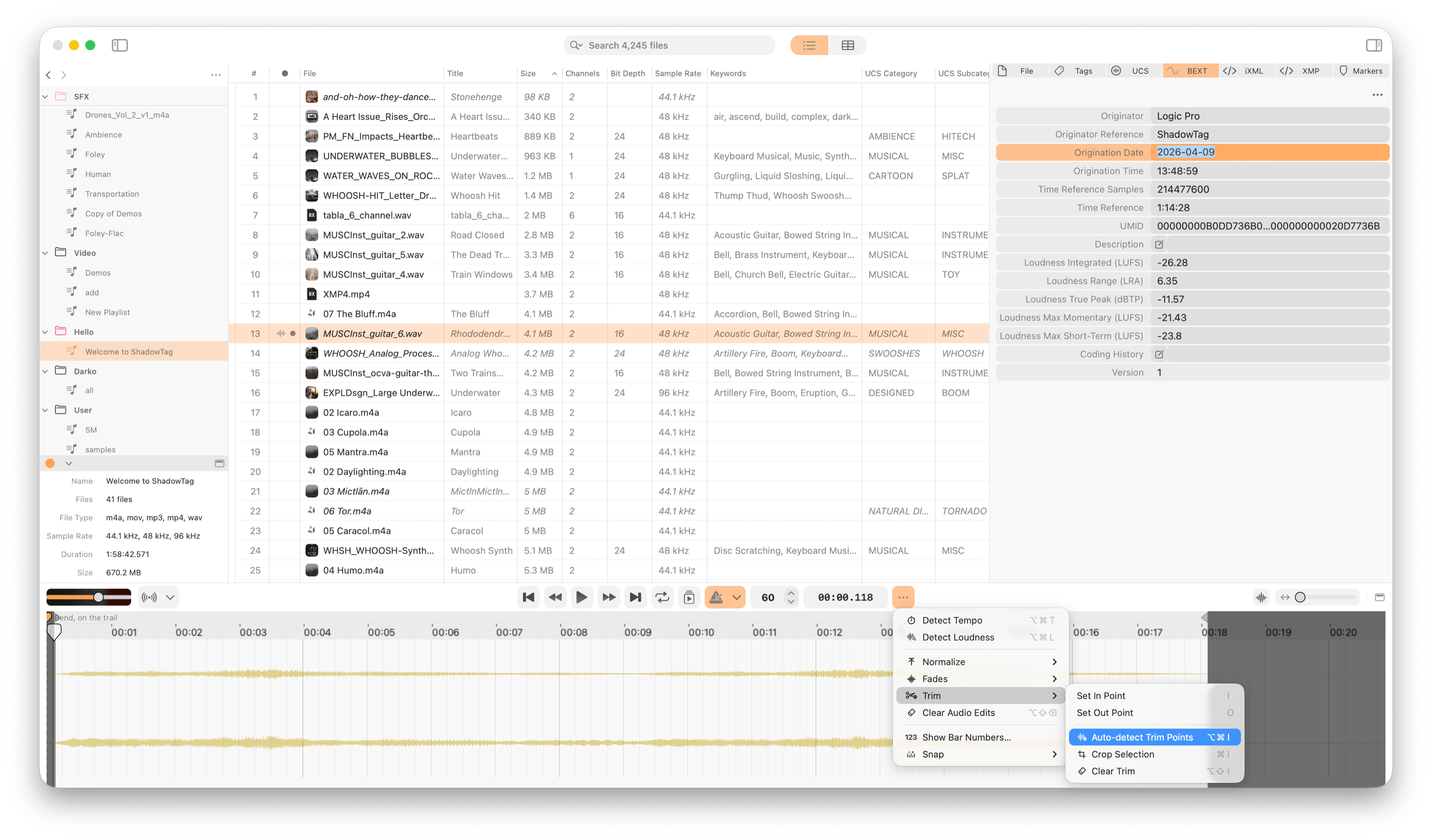
- Trim & Crop — Trim handles in the audio editor define playback in and out points. Press I to set the in point and O to set the out point at the playhead. Crop Selection bounds playback to the current selection.
- Auto-Detect Trim Points — Scan for silence at the start and end of each file and propose trim boundaries automatically.
- Normalize — Measure Peak or LUFS loudness and apply the corresponding gain non-destructively. Configurable mode and target level.
- Video trims — Trimming works on video as well as audio, and saving renders the result with every track intact. Fades and normalize don't apply to video, so their handles are disabled and ShadowTag tells you why rather than failing partway through a save.
Deliver
Segment detection & stem splitting
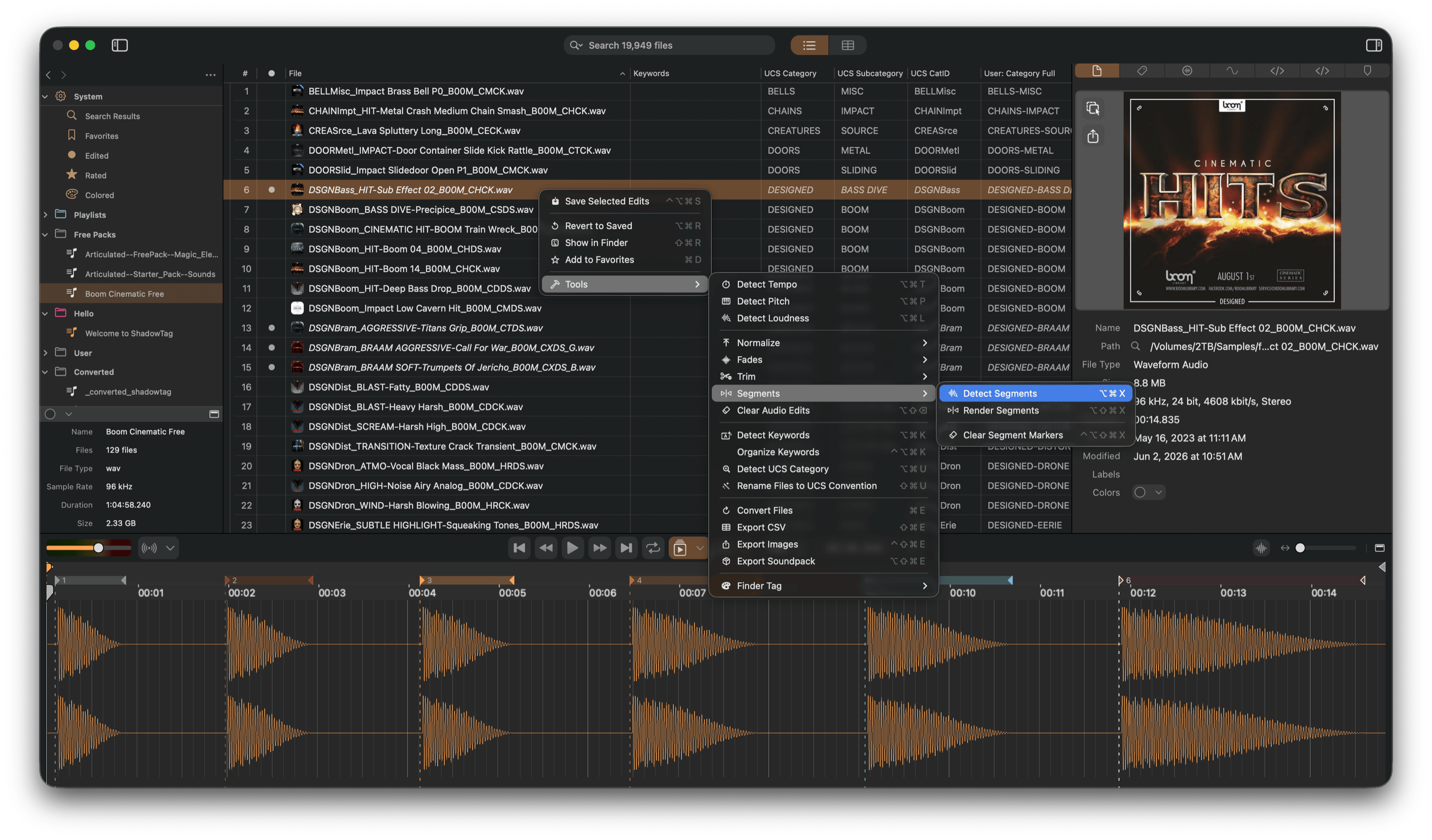
Working with a file that holds several sounds back to back — a take with multiple hits, a stem bounce, a foley pass? ShadowTag finds the individual sounds for you.
Detect Segments scans for non-silent regions and proposes a marker at each one, which you can preview and drag before committing — across a whole selection at once, with your detection settings saved as reusable presets. Render Detected Segments then splits the file into individual audio files at those boundaries, a Pro feature. The processing help covers the detection controls and the stem divider options.
Batch format conversion & soundpacks
Convert files to any supported format from within your library.
- Output formats — WAV, AIFF, MP3, FLAC, OGG (Vorbis or Opus), CAF, M4A. Long WAV exports are written as RF64, so they are not capped at 4 GB.
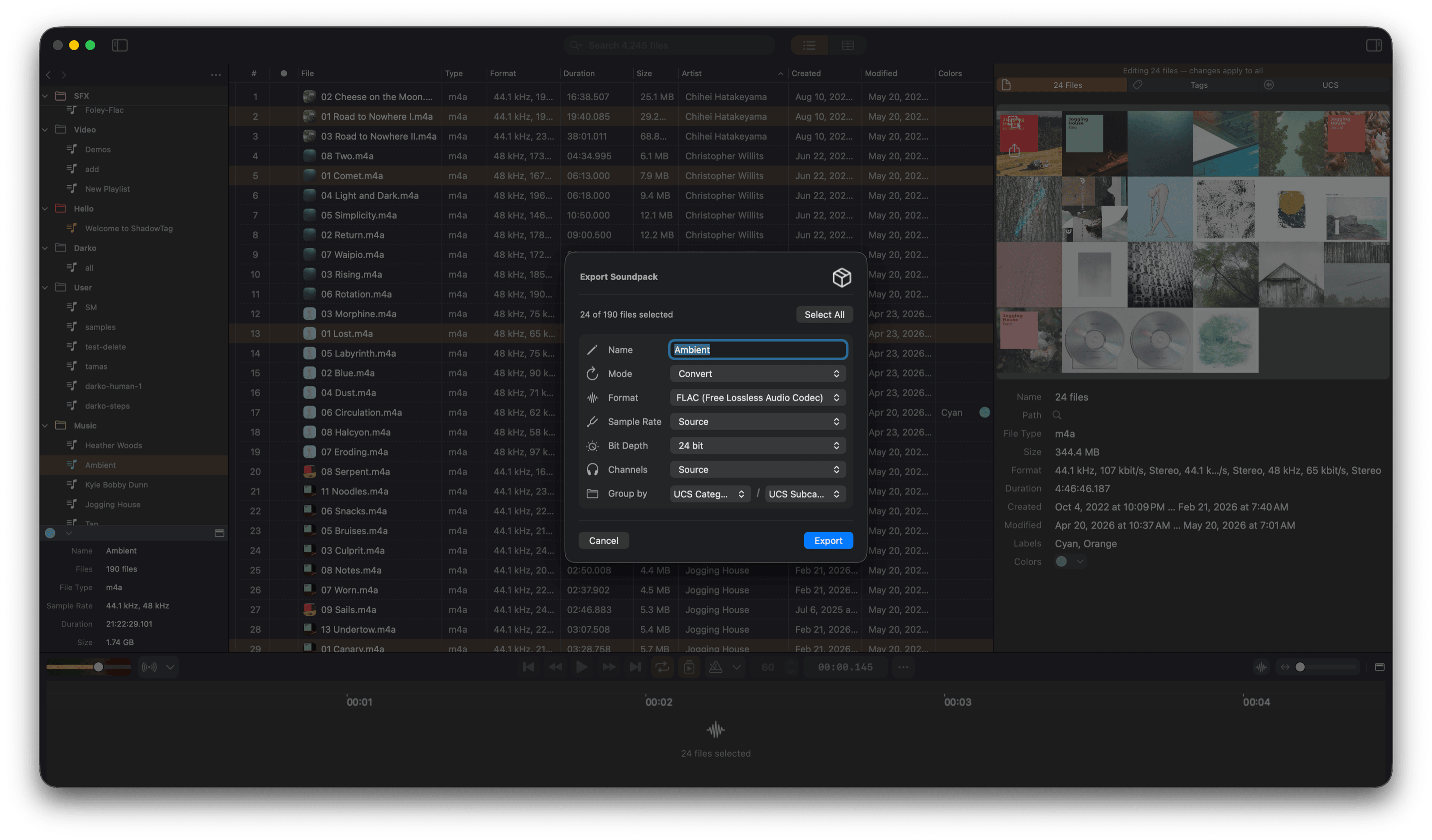
- Export Soundpack — Packages a selection into a self-contained folder, copying, moving or converting the files on the way out, with an optional subfolder hierarchy grouped by tag values.
Sample rate, bit depth, channel count, bit rate, metadata handling and conflict behavior are all set per conversion — see the processing help.
Spot to your timeline
Send files, or a selection of one, straight onto the timeline of Pro Tools, Logic Pro, Cubase, Nuendo, Studio Pro, Reaper, FMOD Studio, DaVinci Resolve, Final Cut Pro, Adobe Premiere or After Effects, at its playhead or edit cursor. No dragging, and no trip through Finder.
- Stacked or end to end — Several files land at the same position on separate tracks, or one after another, depending on what the target supports.
- Selections with handles — A selection in the editor arrives as in and out points, with the rest of the file kept as handles you can extend later.
- Rendered only when needed — Pending fades and trims, video files, and sample rates the session can't take are rendered or converted first. Everything else is referenced where it is, never copied.
- Clip colors — Spotted clips arrive in the file's color from ShadowTag, or its Finder label, matched to the nearest color the application offers.
- Place over existing clips — Where the target allows it, a spot can land on a track that already has material at that position instead of moving to a free one.
- From the transport — The Spot button in the transport spots to your chosen application in one click.
For a manual paste, Copy > VST-XML puts the selection on the clipboard for Cubase, Nuendo or Studio Pro. Spotting requires ShadowTag Pro. Setup for each application is covered in the Spot to Timeline help.
A video walkthrough on YouTube, recorded with version 1.8, covers the core features. The help is kept current with each release.
ShadowTag Pro
Reading, playing, organizing and analyzing your library is free, with no file count limit. Pro adds export and writing your changes into the files.
Your work is saved either way. Edits are kept in your project as you make them, licensed or not, so you can tag and analyze a whole library before deciding — then upgrade whenever you're ready to write it all into your files.
ShadowTag Pro unlocks:
- Creating and switching between projects
- Writing metadata to individual files
- Batch rendering audio edits (fades, trims, normalize) to files
- Batch audio format conversion
- Soundpack export
- Spotting to Pro Tools, Logic Pro, Cubase, Nuendo, Studio Pro, Reaper, FMOD Studio, DaVinci Resolve, Final Cut Pro, Adobe Premiere and After Effects
- FCPXML export for Final Cut Pro, Logic Pro and DaVinci Resolve, and VST-XML copy for Cubase, Nuendo and Studio Pro
- Rendering detected segments to files
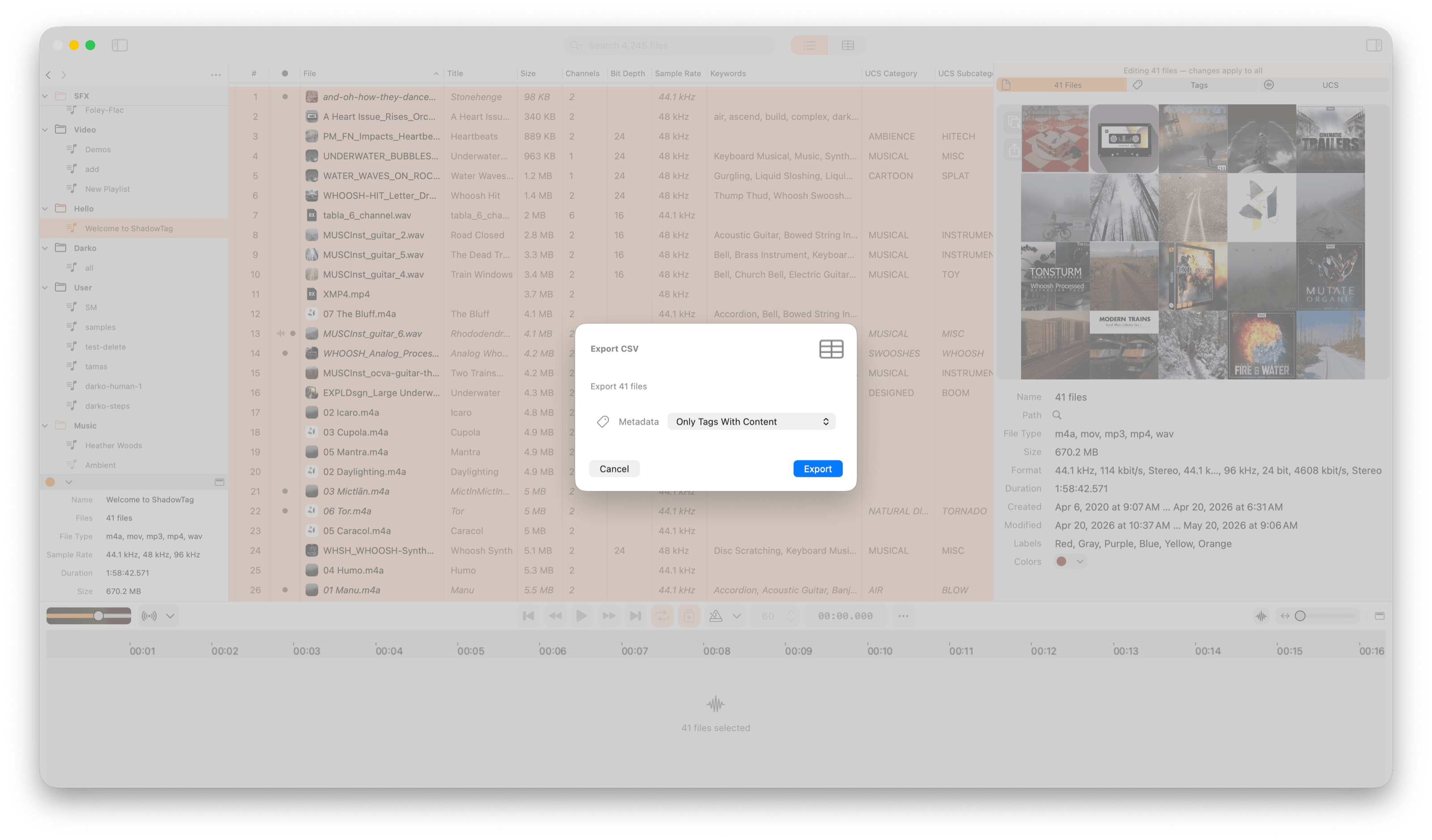
- CSV playlist export, and copying tags as CSV
- Metadata image export, and removing embedded artwork
- UCS filename batch rename
One payment, and every future version is included — major releases too. No upgrade fees, no subscription. Your license key arrives by email.